Previewing Model Inference
You can preview a trained model's inference with the options in the Apply box, shown below. You should note that the Apply options are available on the Model Training panel and on the Model Overview panel of the Deep Learning tool.
Apply options

-
Choose Artificial Intelligence > Deep Learning Tool on the menu bar to open the Deep Learning tool, if it is not already onscreen.
-
Select the required trained model on the Model Overview panel.
-
Display the dataset you want to preview and zoom the view, if required (see Using the Manipulate Tools).
Note Only the section of the dataset that is currently visible in the view will be processed.
- Select the dataset currently in the view in the Input drop-down menu.
- If required, you can normalize the data range prior to previewing the dataset (see Normalizing Data Ranges Prior to Training or Inference).
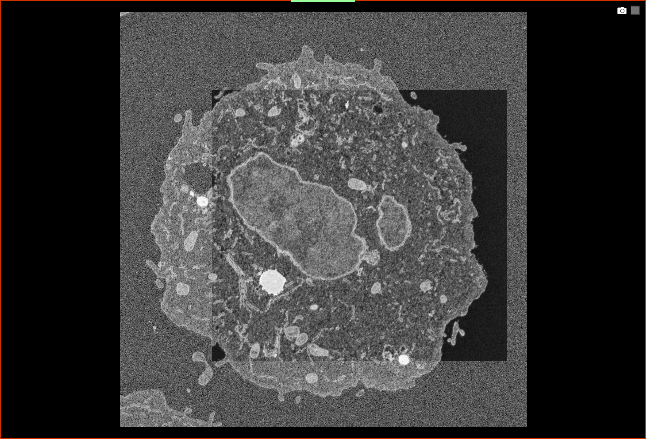
- Click the Preview button.
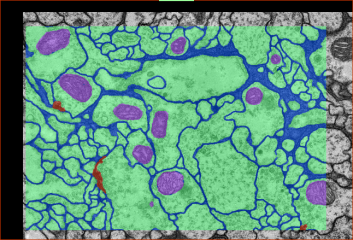
For semantic segmentation models, a multi-ROI is computed for the section of the dataset that is currently visible in the selected 2D view.
For regression models, a dataset is computed for the section of the dataset that is currently visible in the selected 2D view.
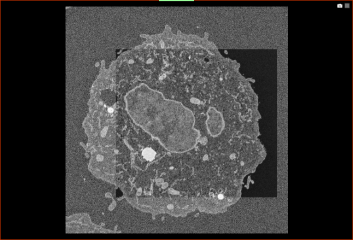
Note You can generate additional previews at different zoom factors and/or positions to fully evaluate your model.
-
Click the Delete Preview button, if required, to remove the preview.
-
Apply the deep model (see Applying Deep Models).